Dual Monitor vs Ultrawide: Which Setup Wins?
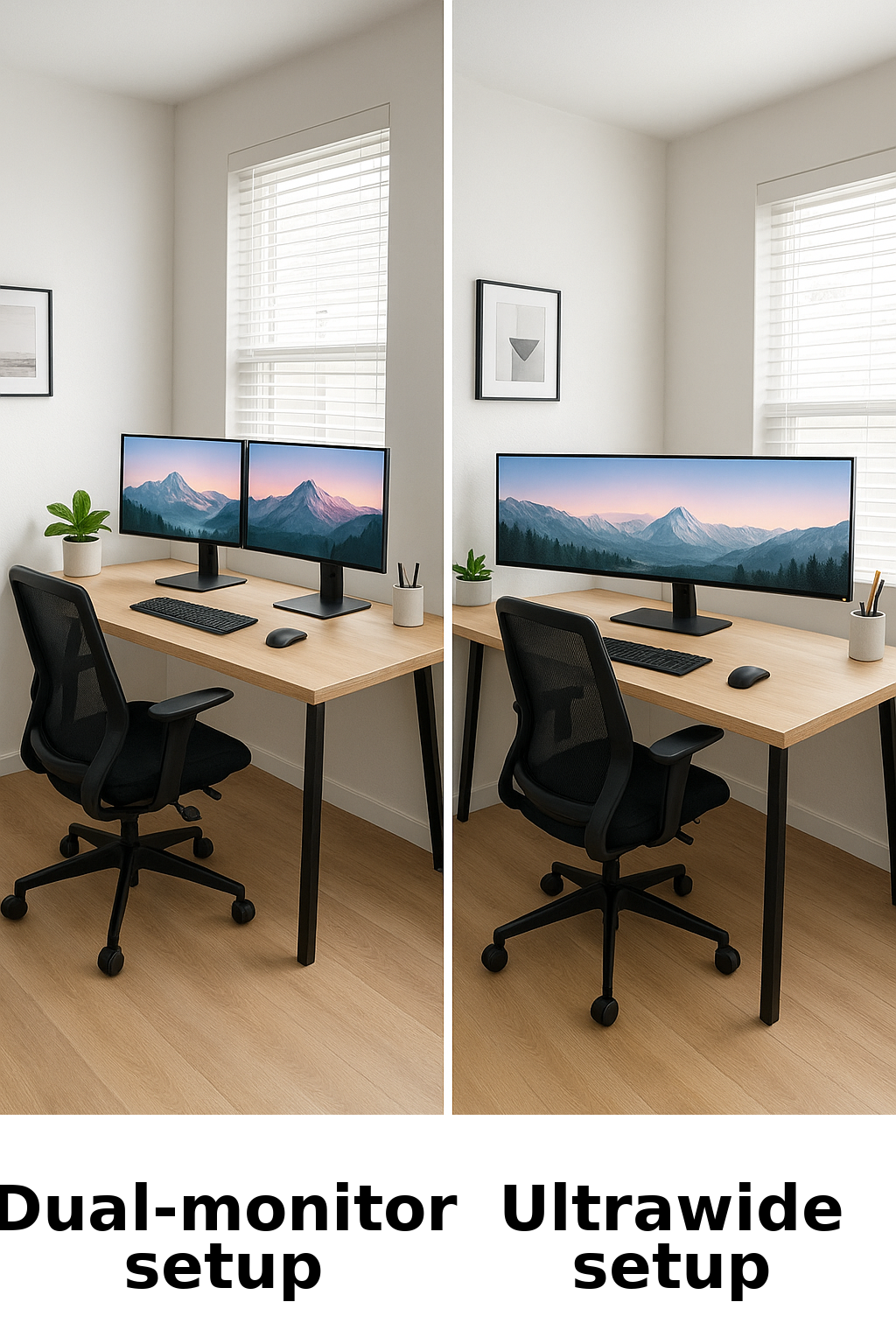
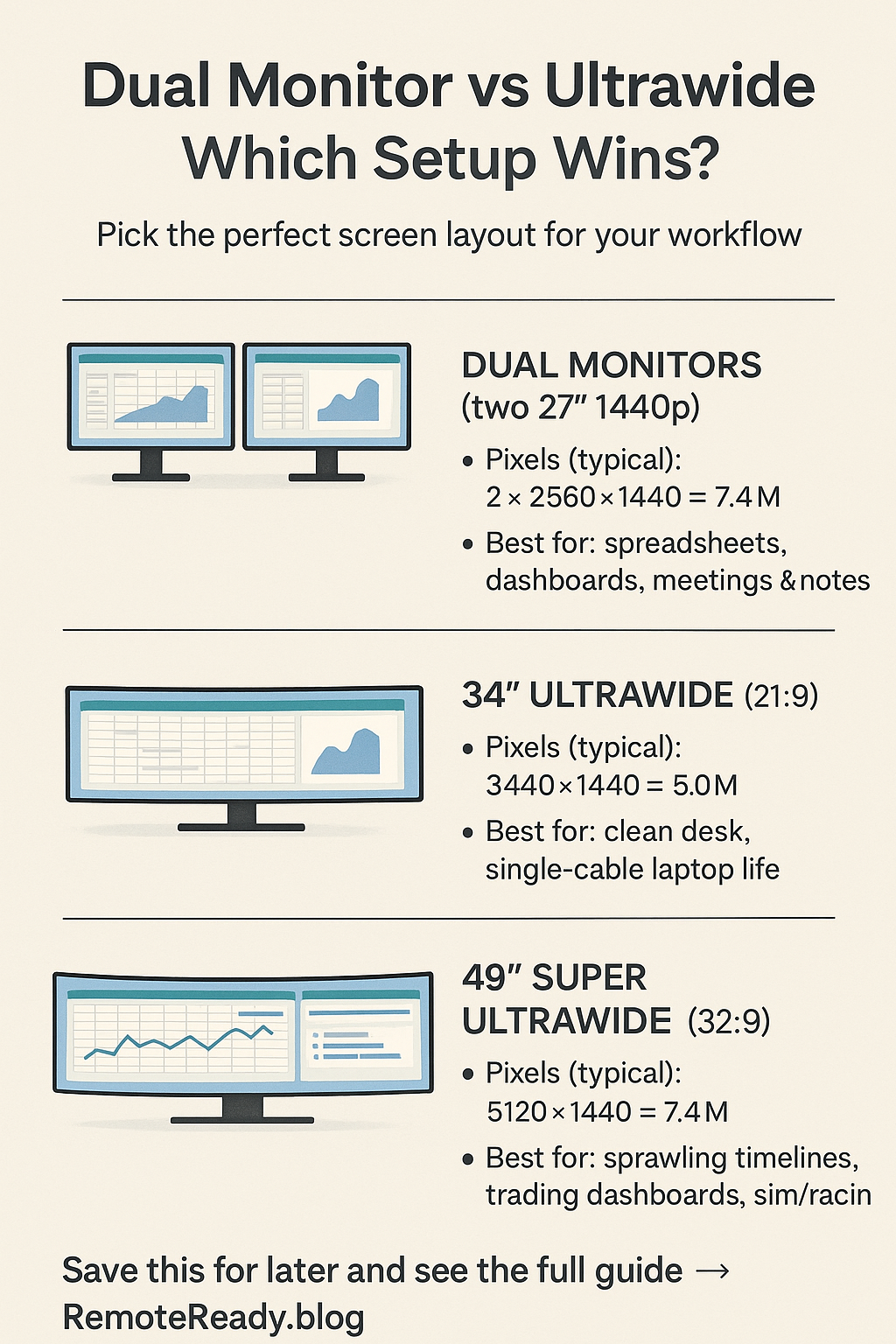
Short answer: dual 27” 1440p monitors give you the most pixels and flexibility for split-screen work. A 34” ultrawide provides one seamless canvas with fewer cables and a cleaner look. A 49” super-ultrawide is stunning if you’ve got the desk depth, budget, and GPU to match.
In this guide you’ll get:
- A quick verdict by workflow
- A skimmable comparison table
- Field-tested picks with “check price” links
Quick picks
- Most productive overall: Dual 27” 1440p IPS
- Cleanest single-cable laptop setup: 34” USB-C ultrawide with KVM (LG 34WQ75C-B)
- Maximum immersion: 49” super ultrawide (32:9)
Jump to
- At a glance
- 1) Dual monitors (two 16:9)
- 2) 34” ultrawide (21:9)
- 3) 49” super ultrawide (32:9)
- Which setup wins for you?
At a glance
| Category | Dual Monitors | 34” Ultrawide | 49” Super Ultrawide |
|---|---|---|---|
| Pixels (typical) | 2 × 2560×1440 = 7.4M | 3440×1440 = 5.0M | 5120×1440 = 7.4M |
| Seamlessness | Center bezel split | One continuous canvas | Massive, continuous canvas |
| Desk depth needed | Moderate (arms help) | Moderate | High (very deep desk) |
| Cables & power | 2 power + 2 video | 1 power + 1 video | 1 power + 1 video |
| Window management | Simple: one app per screen | Great with 2–3 snap zones | Needs zones; strong GPU for many apps |
| Laptop single-cable | Dock required for 2 displays | USB-C + KVM on many models | Varies; usually no KVM |
| Gaming support | Universal | Strong (21:9 widely supported) | Mixed (32:9 not in every game) |
| Flexibility | Mix sizes; rotate one portrait | Fixed shape; clean look | One huge unit; spectacular immersion |
| Typical cost | Great value per pixel | Mid to upper-mid | High |
1) Dual monitors (two 16:9 screens)
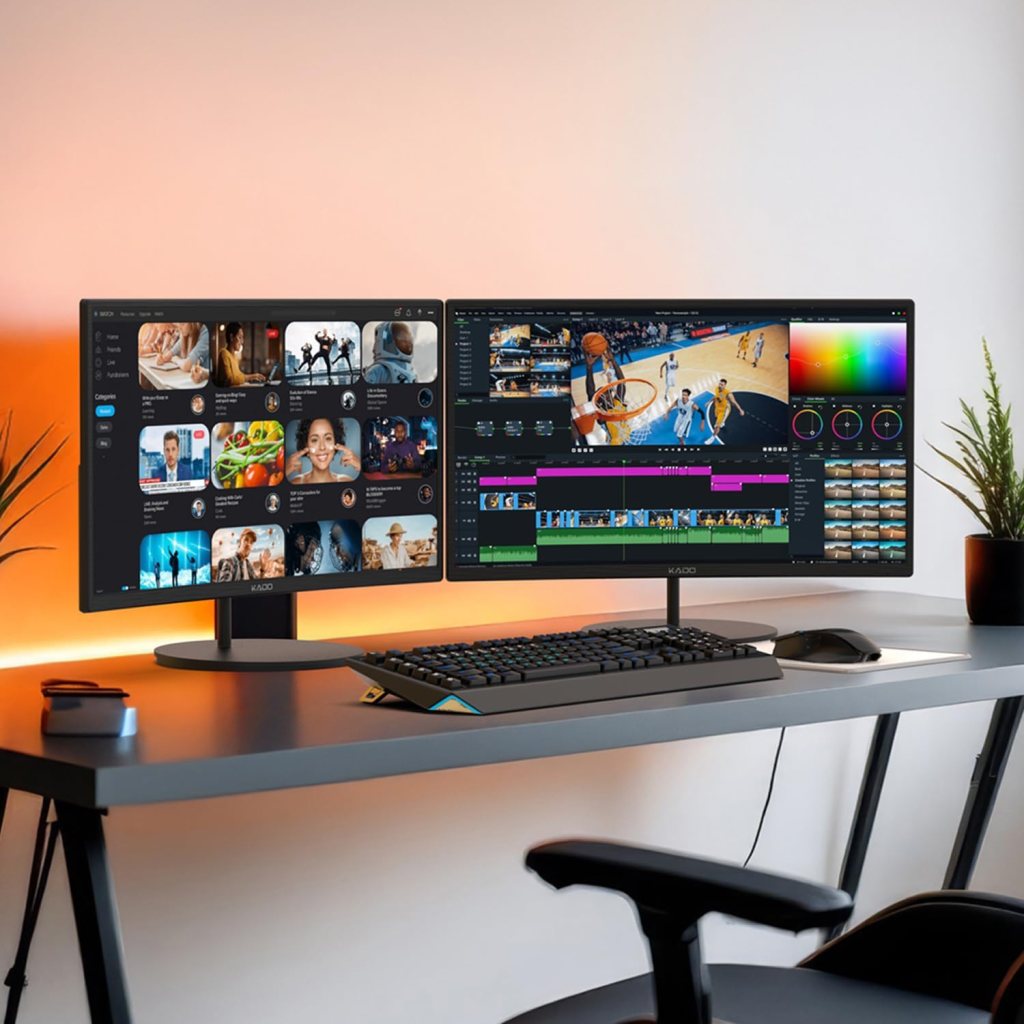
Why pick this: the simplest mental model (left = comms, right = work), lots of pixels, and you can dedicate a full screen per task. It shines for spreadsheets, dashboards, docs beside a call, and anyone who prefers a firm split between apps.
- Pros: most pixels per dollar, universal app support, easy ergonomics with a dual arm, rotate one monitor to portrait.
- Cons: bezel in the middle, more cables; many laptops need a dock for dual externals.
- Nice to have: a dual monitor arm to reclaim desk space and align heights perfectly.
Best pick: 27” 1440p IPS monitor
Accessory: dual monitor arm
If on a laptop: USB-C dock for dual displays
2) 34” ultrawide (21:9)
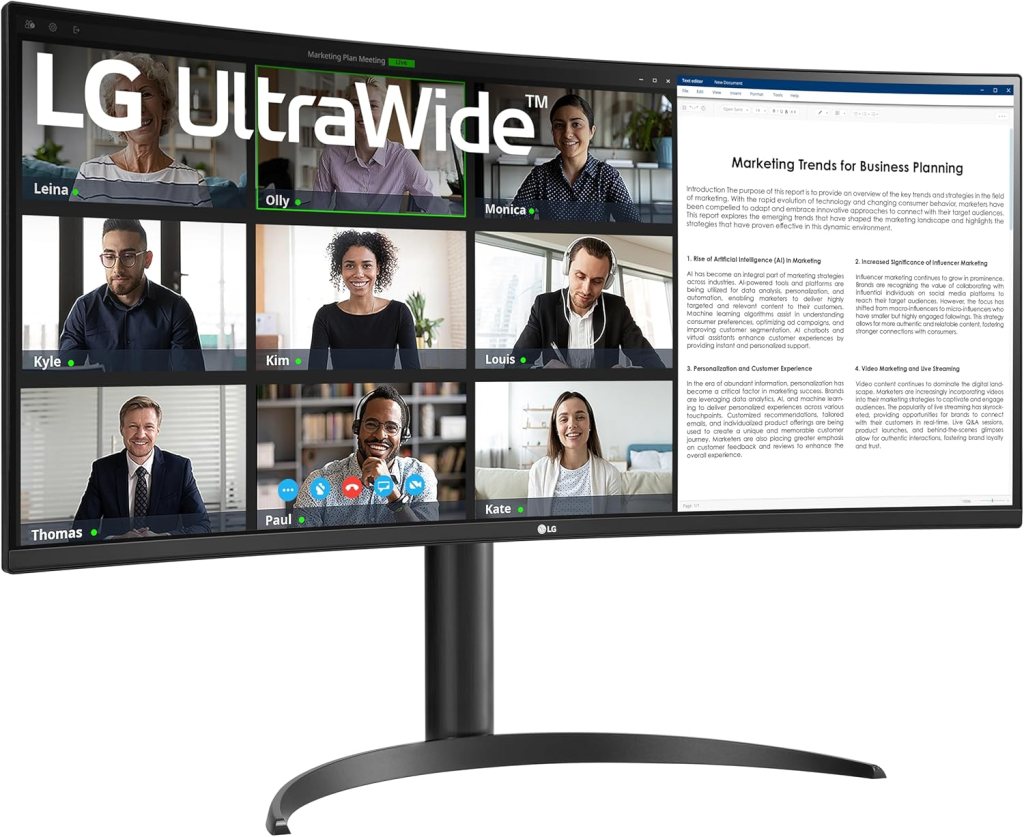
Why pick this: one continuous canvas for three tidy columns (chat | main work | reference). USB-C hub + KVM models charge your laptop, pass Ethernet, and switch keyboard/mouse between two computers with one button.
- Pros: cleaner look, fewer cables, KVM/USB-C options, great for timelines, code + preview, and deep-work layouts.
- Cons: fewer total pixels than dual 27”; some apps/consoles render at 16:9 with side bars; needs good window snapping.
- Tip: set 2–3 custom zones you reuse all day (Windows Snap/PowerToys; macOS tiling).
Best pick: LG 34WQ75C-B (3440×1440, USB-C 90W, Ethernet, built-in KVM)
Budget pick: AOC CU34G2X (34” 144Hz value favorite)
3) 49” super ultrawide (32:9)
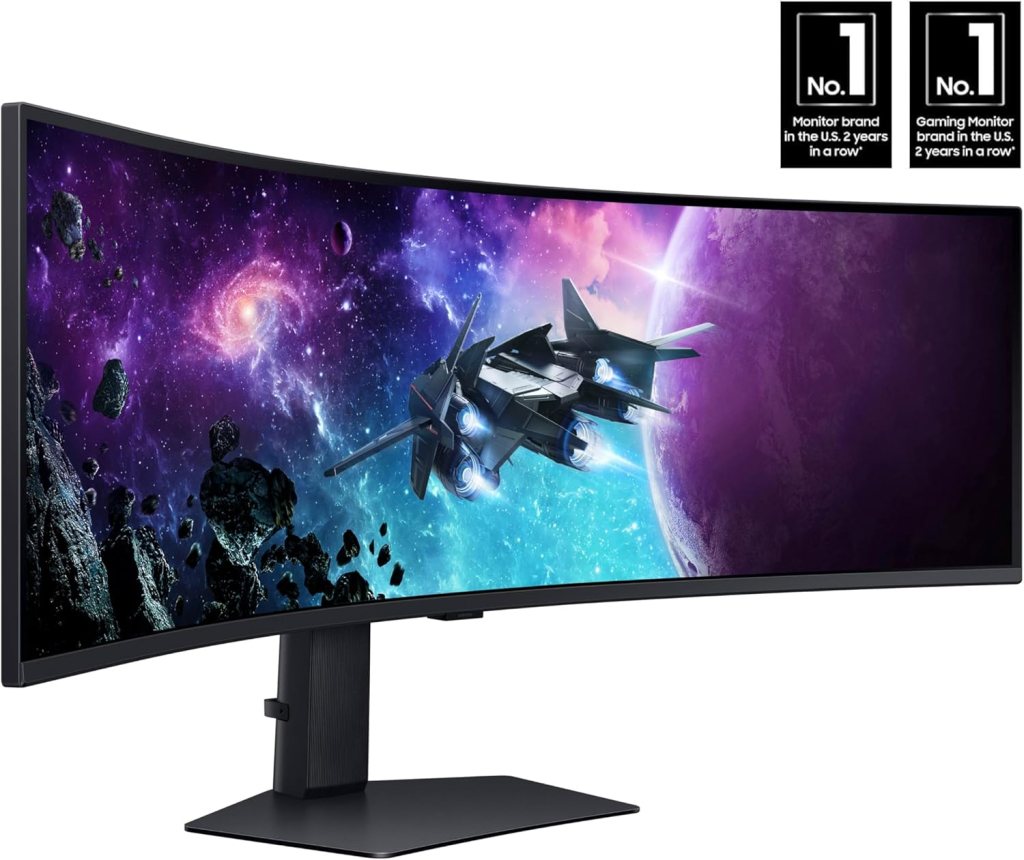
Why pick this: maximum immersion and the same pixel width as dual 27” 1440p without a bezel. Brilliant for sprawling timelines, trading dashboards, or sim/gaming rigs.
- Pros: gigantic contiguous space, no center bezel, incredible for multi-panel workflows.
- Cons: expensive, heavy, needs a deep desk and strong GPU; not every game handles 32:9 perfectly; console support is limited.
- Tip: create 3–4 snap zones and save them so windows always land in the right place.
Best pick: Samsung Odyssey Neo G9 (49” 5120×1440)
Accessory: heavy-duty stand/arm rated for 49”
Which setup wins?
- Numbers, dashboards, constant meetings: Dual 27” 1440p for fast context switching and maximum pixels.
- Minimal cables, single-cable laptop life: 34” ultrawide with USB-C + KVM.
- Editors, traders, sim/racing fans with deep desks: 49” super ultrawide, if your GPU can feed it.
- Small desk or tighter budget: start with one good 27” 1440p, add a second later or jump to a 34”.
Build your desk setup
- Monitor arms guide
- Cable management that actually works
- Webcams that make you look professional
- Standing desk accessories
Disclosure: As an Amazon Associate, I earn from qualifying purchases. This means I receive a small commission when you buy through the links on this page, at no additional cost to you.
 Remote Ready
Leave a comment