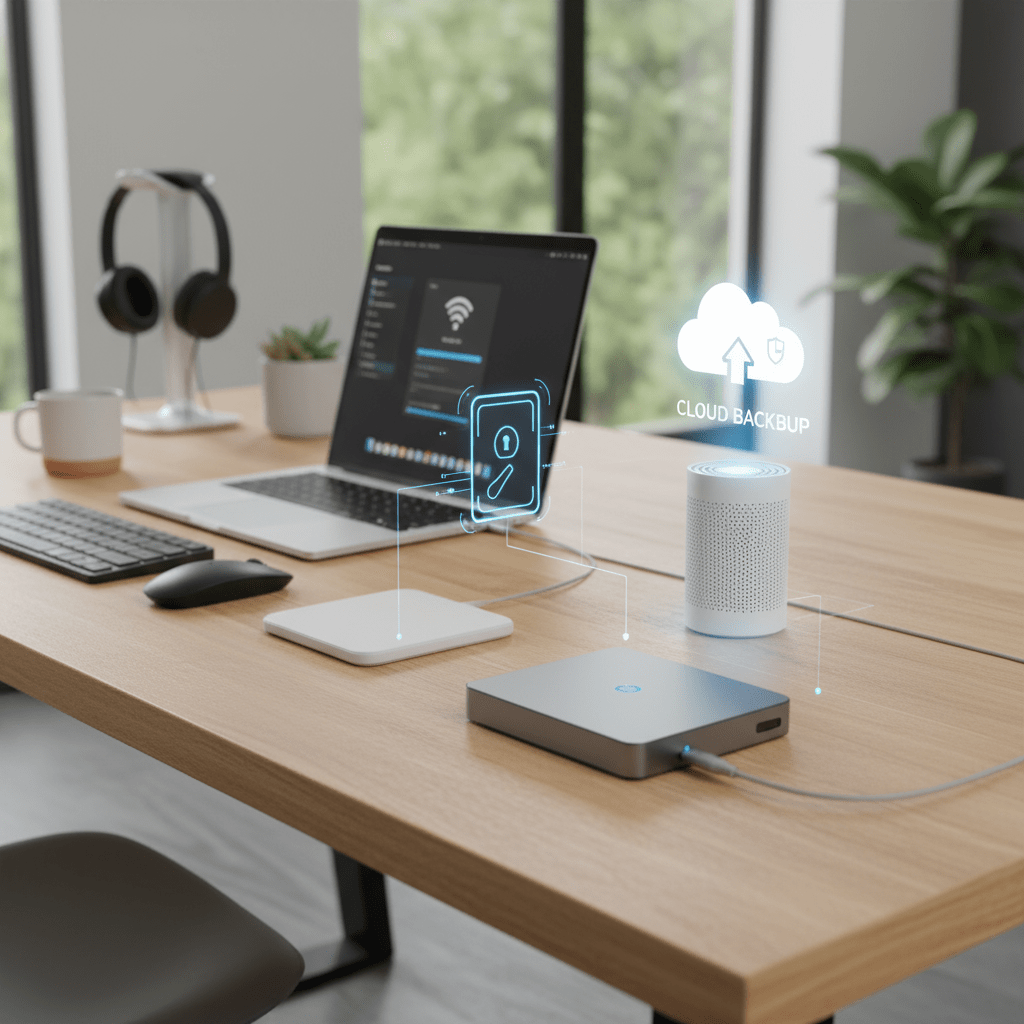
Data Security Without the Boring Lecture (External Drives + Cloud)
Positioning: Peace of mind for remote workers. No jargon storm. Just a simple setup that protects your files, client work, and sanity.
In this guide you’ll get:
- The simple “3-2-1” backup idea explained in one minute.
- External drive picks that don’t slow you down.
- Cloud choices that quietly back up in the background.
- My Backup Routine in 10 Minutes you can copy.
Quick picks:
- Why backup (fast)
- External drive picks
- Cloud backup options
- My Backup Routine in 10 Minutes
- Prove it works: restore test
- Security & encryption basics
Why backup (fast)
3-2-1 rule: Keep 3 copies of important data on 2 different types of storage with 1 copy off-site. Translation for WFH: store work on your computer, mirror it to an external drive, and send a copy to the cloud. That’s it.
External drive picks
Portable SSDs (best mix of speed + reliability)
- Samsung T7 — fast enough for Time Machine, File History, project files, and light video. Pick 1–2 TB.
- SanDisk Extreme Portable SSD — rugged shell, USB-C; good for backpacks and travel.
Tip: SSDs are faster and tougher than HDDs, which makes backups painless and therefore more likely to happen.
High-capacity on a budget (HDDs)
WD My Passport 4–5 TB — slower than SSDs but cheap per terabyte. Great for weekly archives.
Cloud backup options
- Backblaze — unlimited computer backup, set-and-forget. Ideal for entire machine coverage.
- iCloud Drive / OneDrive / Google Drive — great for syncing work folders; make sure Desktop/Documents are included.
- Tip: Cloud sync isn’t the same as cloud backup. Turn on the provider’s backup/versioning so deleted files can be recovered.
My Backup Routine in 10 Minutes
- Minute 1: Plug in your portable SSD.
- Minutes 2–3: Turn on automatic backup (macOS: Time Machine, Windows: File History or Windows Backup), choose the SSD.
- Minutes 4–5: Pick the folders that matter: work projects, Desktop, Documents, Photos, finance.
- Minutes 6–7: Enable your cloud backup or sync app (Backblaze, iCloud/OneDrive/Google Drive). Confirm it includes Documents/Desktop and your project folder.
- Minute 8: Encrypt the external drive (macOS: Right-click > Encrypt; Windows: BitLocker on Pro editions).
- Minute 9: Schedule: SSD backs up daily, cloud runs continuous. Put the SSD somewhere safe after each session.
- Minute 10: Quick test restore (see below) so you know it actually works.
Prove it works: restore test
- Create a tiny test document, let it back up to SSD and cloud.
- Delete the file locally.
- Restore it from the SSD, then from the cloud. Time how long it takes. If either fails, fix it now.
Security & encryption basics
- Encrypt the drive: use FileVault (macOS) and BitLocker (Windows Pro). External SSDs can also be encrypted.
- Strong account sign-in: password manager + 2FA for cloud providers.
- Label the SSD and keep it separate: don’t travel with your laptop and the only backup in the same bag.
- Quarterly check-in: verify the SSD has recent snapshots and your cloud shows current backups.
Related reads
Cable management that actually works · Webcams that make you look professional · UPS systems that save your Zoom

Disclosure: As an Amazon Associate, I earn from qualifying purchases. This means I receive a small commission when you buy through the links on this page, at no additional cost to you.
 Remote Ready
Leave a comment